

注意
此示例相容 Gymnasium 1.2.0 版本。
建立您自己的自定義環境
本教程展示如何建立新環境,並連結到 Gymnasium 中包含的相關有用包裝器、實用程式和測試。
設定
推薦解決方案
遵循 pipx 文件安裝
pipx。然後安裝 Copier
pipx install copier
替代解決方案
使用 Pip 或 Conda 安裝 Copier
pip install copier
或
conda install -c conda-forge copier
生成您的環境
您可以執行以下命令檢查 Copier 是否已正確安裝,該命令應輸出版本號:
copier --version
然後您只需執行以下命令,並將字串 path/to/directory 替換為您希望建立新專案的目錄路徑。
copier copy https://github.com/Farama-Foundation/gymnasium-env-template.git "path/to/directory"
回答問題,完成後您應該會得到如下專案結構:
.
├── gymnasium_env
│        ├── envs
│        │       ├── grid_world.py
│        │       └── __init__.py
│        ├── __init__.py
│        └── wrappers
│            ├── clip_reward.py
│            ├── discrete_actions.py
│            ├── __init__.py
│            ├── reacher_weighted_reward.py
│            └── relative_position.py
├── LICENSE
├── pyproject.toml
└── README.md
繼承 gymnasium.Env
在學習如何建立您自己的環境之前,您應該檢視 Gymnasium API 文件。
為了說明繼承 gymnasium.Env 的過程,我們將實現一個非常簡單的遊戲,稱為 GridWorldEnv。我們將在 gymnasium_env/envs/grid_world.py 中編寫自定義環境的程式碼。該環境由一個固定大小的二維方格網格組成(透過構造時的 size 引數指定)。智慧體在每個時間步可以在網格單元之間垂直或水平移動。智慧體的目標是導航到劇集開始時隨機放置在網格上的目標點。
觀測值提供目標和智慧體的位置。
我們的環境有 4 個動作,分別對應“右”、“上”、“左”和“下”的移動。
一旦智慧體導航到目標所在的網格單元,就會發出完成訊號。
獎勵是二元的且稀疏的,這意味著即時獎勵始終為零,除非智慧體已到達目標,此時獎勵為 1。
此環境中的一集(size=5)可能看起來像這樣:
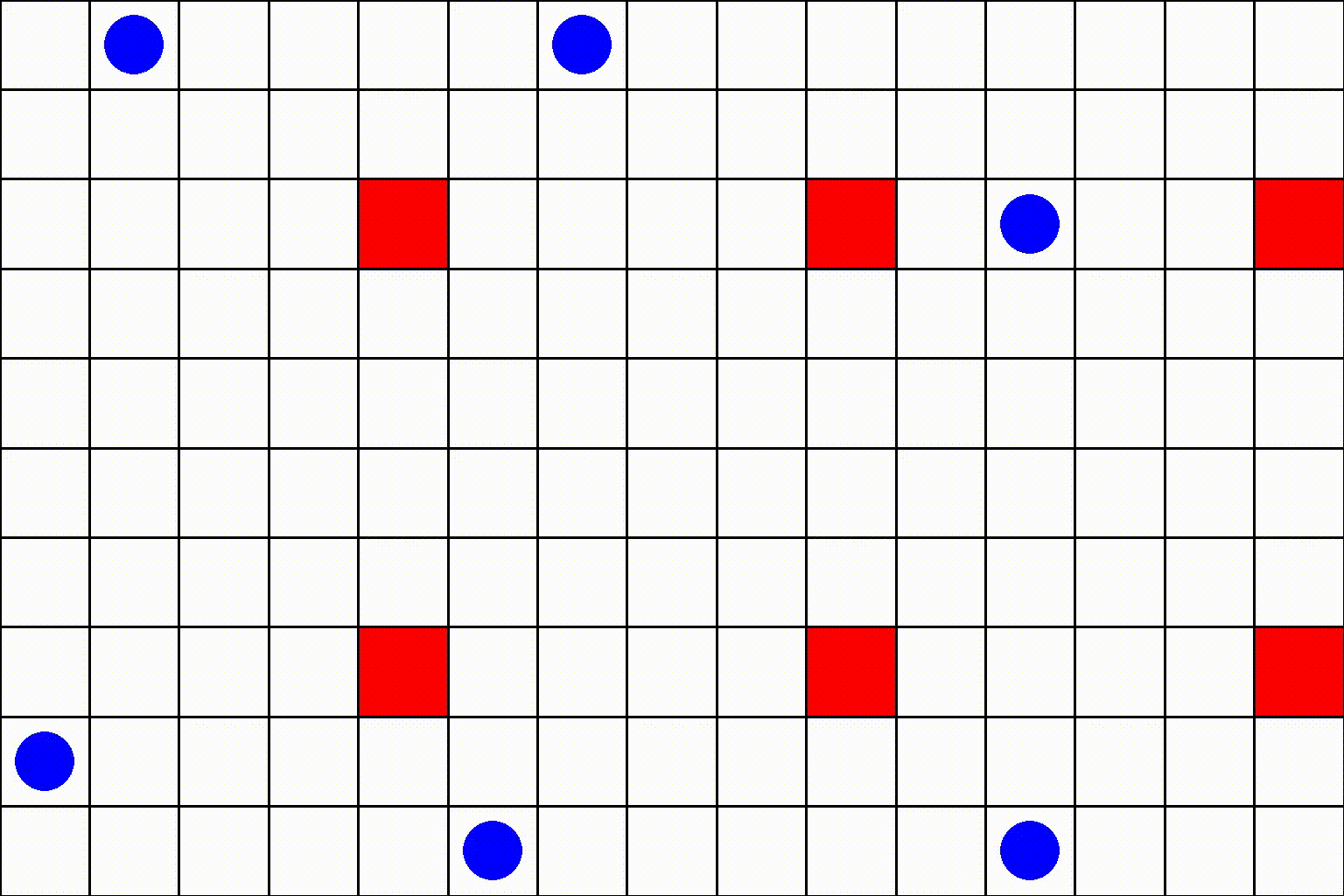
其中藍點是智慧體,紅方塊代表目標。
讓我們逐段檢視 GridWorldEnv 的原始碼。
宣告和初始化
我們的自定義環境將繼承自抽象類 gymnasium.Env。您不應忘記向您的類新增 metadata 屬性。在那裡,您應該指定您的環境支援的渲染模式(例如,"human"、"rgb_array"、"ansi")以及您的環境應渲染的幀率。每個環境都應支援 None 作為渲染模式;您無需在元資料中新增它。在 GridWorldEnv 中,我們將支援“rgb_array”和“human”模式,並以 4 FPS 渲染。
我們環境的 __init__ 方法將接受整數 size,它決定了方格網格的大小。我們將設定一些用於渲染的變數,並定義 self.observation_space 和 self.action_space。在我們的例子中,觀測值應該提供關於智慧體和目標在二維網格上的位置資訊。我們將選擇以字典形式表示觀測值,鍵為 "agent" 和 "target"。一個觀測值可能看起來像 {"agent": array([1, 0]), "target": array([0, 3])}。由於我們的環境有 4 個動作(“右”、“上”、“左”、“下”),我們將使用 Discrete(4) 作為動作空間。以下是 GridWorldEnv 的宣告和 __init__ 的實現:
# gymnasium_env/envs/grid_world.py
from enum import Enum

import numpy as np
import pygame

import gymnasium as gym
from gymnasium import spaces


class Actions(Enum):
    RIGHT = 0
    UP = 1
    LEFT = 2
    DOWN = 3


class GridWorldEnv(gym.Env):
    metadata = {"render_modes": ["human", "rgb_array"], "render_fps": 4}

    def __init__(self, render_mode=None, size=5):
        self.size = size  # The size of the square grid
        self.window_size = 512  # The size of the PyGame window

        # Observations are dictionaries with the agent's and the target's location.
        # Each location is encoded as an element of {0, ..., `size`}^2, i.e. MultiDiscrete([size, size]).
        self.observation_space = spaces.Dict(
            {
                "agent": spaces.Box(0, size - 1, shape=(2,), dtype=int),
                "target": spaces.Box(0, size - 1, shape=(2,), dtype=int),
            }
        )
        self._agent_location = np.array([-1, -1], dtype=int)
        self._target_location = np.array([-1, -1], dtype=int)

        # We have 4 actions, corresponding to "right", "up", "left", "down"
        self.action_space = spaces.Discrete(4)

        """
        The following dictionary maps abstract actions from `self.action_space` to
        the direction we will walk in if that action is taken.
        i.e. 0 corresponds to "right", 1 to "up" etc.
        """
        self._action_to_direction = {
            Actions.RIGHT.value: np.array([1, 0]),
            Actions.UP.value: np.array([0, 1]),
            Actions.LEFT.value: np.array([-1, 0]),
            Actions.DOWN.value: np.array([0, -1]),
        }

        assert render_mode is None or render_mode in self.metadata["render_modes"]
        self.render_mode = render_mode

        """
        If human-rendering is used, `self.window` will be a reference
        to the window that we draw to. `self.clock` will be a clock that is used
        to ensure that the environment is rendered at the correct framerate in
        human-mode. They will remain `None` until human-mode is used for the
        first time.
        """
        self.window = None
        self.clock = None
從環境狀態構造觀測值
由於我們既需要在 reset 中也需要在 step 中計算觀測值,因此通常方便擁有一個(私有)方法 _get_obs 來將環境狀態轉換為觀測值。然而,這不是強制性的,您也可以在 reset 和 step 中分別計算觀測值。
def _get_obs(self):
    return {"agent": self._agent_location, "target": self._target_location}
我們還可以為 step 和 reset 返回的輔助資訊實現類似的方法。在我們的例子中,我們希望提供智慧體和目標之間的曼哈頓距離。
def _get_info(self):
    return {
        "distance": np.linalg.norm(
            self._agent_location - self._target_location, ord=1
        )
    }
通常,info 中還會包含一些僅在 step 方法內部可用的資料(例如,單個獎勵項)。在這種情況下,我們必須在 step 中更新 _get_info 返回的字典。
重置
reset 方法將被呼叫以啟動一個新的劇集。您可以假定在呼叫 reset 之前不會呼叫 step 方法。此外,每當發出完成訊號時,都應呼叫 reset。使用者可以將 seed 關鍵字傳遞給 reset,以將環境使用的任何隨機數生成器初始化為確定性狀態。建議使用環境基類 gymnasium.Env 提供的隨機數生成器 self.np_random。如果您只使用此 RNG,則無需過多擔心種子設定,但您需要記住呼叫 super().reset(seed=seed) 以確保 gymnasium.Env 正確地設定 RNG 種子。一旦完成,我們就可以隨機設定環境的狀態。在我們的例子中,我們隨機選擇智慧體的位置和隨機取樣的目標位置,直到它與智慧體的位置不重合。
reset 方法應返回初始觀測值和一些輔助資訊的元組。我們可以使用我們之前實現的 _get_obs 和 _get_info 方法來實現這一點:
def reset(self, seed=None, options=None):
    # We need the following line to seed self.np_random
    super().reset(seed=seed)

    # Choose the agent's location uniformly at random
    self._agent_location = self.np_random.integers(0, self.size, size=2, dtype=int)

    # We will sample the target's location randomly until it does not coincide with the agent's location
    self._target_location = self._agent_location
    while np.array_equal(self._target_location, self._agent_location):
        self._target_location = self.np_random.integers(
            0, self.size, size=2, dtype=int
        )

    observation = self._get_obs()
    info = self._get_info()

    if self.render_mode == "human":
        self._render_frame()

    return observation, info
步進
step 方法通常包含您環境的大部分邏輯。它接受一個 action,計算應用該動作後環境的狀態,並返回 5 元組 (observation, reward, terminated, truncated, info)。請參閱 gymnasium.Env.step()。一旦環境的新狀態被計算出來,我們就可以檢查它是否是終止狀態,並相應地設定 done。由於我們在 GridWorldEnv 中使用稀疏的二元獎勵,一旦我們知道 done,計算 reward 就變得微不足道。為了收集 observation 和 info,我們可以再次利用 _get_obs 和 _get_info:
def step(self, action):
    # Map the action (element of {0,1,2,3}) to the direction we walk in
    direction = self._action_to_direction[action]
    # We use `np.clip` to make sure we don't leave the grid
    self._agent_location = np.clip(
        self._agent_location + direction, 0, self.size - 1
    )
    # An episode is done iff the agent has reached the target
    terminated = np.array_equal(self._agent_location, self._target_location)
    reward = 1 if terminated else 0  # Binary sparse rewards
    observation = self._get_obs()
    info = self._get_info()

    if self.render_mode == "human":
        self._render_frame()

    return observation, reward, terminated, False, info
渲染
在這裡,我們使用 PyGame 進行渲染。Gymnasium 中包含的許多環境都使用了類似的渲染方法,您可以將其作為您自己環境的骨架。
def render(self):
    if self.render_mode == "rgb_array":
        return self._render_frame()

def _render_frame(self):
    if self.window is None and self.render_mode == "human":
        pygame.init()
        pygame.display.init()
        self.window = pygame.display.set_mode(
            (self.window_size, self.window_size)
        )
    if self.clock is None and self.render_mode == "human":
        self.clock = pygame.time.Clock()

    canvas = pygame.Surface((self.window_size, self.window_size))
    canvas.fill((255, 255, 255))
    pix_square_size = (
        self.window_size / self.size
    )  # The size of a single grid square in pixels

    # First we draw the target
    pygame.draw.rect(
        canvas,
        (255, 0, 0),
        pygame.Rect(
            pix_square_size * self._target_location,
            (pix_square_size, pix_square_size),
        ),
    )
    # Now we draw the agent
    pygame.draw.circle(
        canvas,
        (0, 0, 255),
        (self._agent_location + 0.5) * pix_square_size,
        pix_square_size / 3,
    )

    # Finally, add some gridlines
    for x in range(self.size + 1):
        pygame.draw.line(
            canvas,
            0,
            (0, pix_square_size * x),
            (self.window_size, pix_square_size * x),
            width=3,
        )
        pygame.draw.line(
            canvas,
            0,
            (pix_square_size * x, 0),
            (pix_square_size * x, self.window_size),
            width=3,
        )

    if self.render_mode == "human":
        # The following line copies our drawings from `canvas` to the visible window
        self.window.blit(canvas, canvas.get_rect())
        pygame.event.pump()
        pygame.display.update()

        # We need to ensure that human-rendering occurs at the predefined framerate.
        # The following line will automatically add a delay to keep the framerate stable.
        self.clock.tick(self.metadata["render_fps"])
    else:  # rgb_array
        return np.transpose(
            np.array(pygame.surfarray.pixels3d(canvas)), axes=(1, 0, 2)
        )
關閉
close 方法應關閉環境使用的任何開放資源。在許多情況下,您實際上無需費心實現此方法。然而,在我們的示例中,render_mode 可能為 "human",我們可能需要關閉已開啟的視窗。
def close(self):
    if self.window is not None:
        pygame.display.quit()
        pygame.quit()
在其他環境中,close 也可能關閉已開啟的檔案或釋放其他資源。在呼叫 close 後,您不應再與環境互動。
註冊環境
為了讓 Gymnasium 檢測到自定義環境,它們必須按如下方式註冊。我們將選擇將此程式碼放在 gymnasium_env/__init__.py 中。
from gymnasium.envs.registration import register

register(
    id="gymnasium_env/GridWorld-v0",
    entry_point="gymnasium_env.envs:GridWorldEnv",
)
環境 ID 由三個組成部分構成,其中兩個是可選的:一個可選的名稱空間(此處為:gymnasium_env),一個強制性名稱(此處為:GridWorld)以及一個可選但推薦的版本號(此處為:v0)。它也可以註冊為 GridWorld-v0(推薦方法)、GridWorld 或 gymnasium_env/GridWorld,然後在建立環境時應使用相應的 ID。
關鍵字引數 max_episode_steps=300 將確保透過 gymnasium.make 例項化的 GridWorld 環境將被包裹在 TimeLimit 包裝器中(更多資訊請參閱包裝器文件)。如果智慧體已達到目標或當前劇集中已執行了 300 步,則將產生完成訊號。要區分截斷和終止,您可以檢查 info["TimeLimit.truncated"]。
除了 id 和 entrypoint 之外,您還可以將以下附加關鍵字引數傳遞給 register:
名稱 |
型別 |
預設 |
描述 |
|---|---|---|---|
|
|
|
任務被認為已解決前的獎勵閾值 |
|
|
|
即使在設定種子後,此環境是否仍是非確定性的 |
|
|
|
一個劇集可以包含的最大步數。如果不是 |
|
|
|
是否將環境包裝在 |
|
|
|
傳遞給環境類的預設關鍵字引數 |
這些關鍵字(除了 max_episode_steps、order_enforce 和 kwargs)大多數不改變環境例項的行為,而只是提供一些關於您環境的額外資訊。註冊後,我們的自定義 GridWorldEnv 環境可以透過 env = gymnasium.make('gymnasium_env/GridWorld-v0') 建立。
gymnasium_env/envs/__init__.py 應包含:
from gymnasium_env.envs.grid_world import GridWorldEnv
如果您的環境未註冊,您可以選擇傳遞一個要匯入的模組,該模組將在建立環境之前註冊您的環境,例如:env = gymnasium.make('module:Env-v0'),其中 module 包含註冊程式碼。對於 GridWorld 環境,註冊程式碼透過匯入 gymnasium_env 來執行,因此如果無法顯式匯入 gymnasium_env,您可以在建立時透過 env = gymnasium.make('gymnasium_env:gymnasium_env/GridWorld-v0') 進行註冊。這在您只允許將環境 ID 傳遞給第三方程式碼庫(例如,學習庫)時特別有用。這允許您註冊環境而無需編輯庫的原始碼。
建立包
最後一步是將我們的程式碼結構化為一個 Python 包。這涉及到配置 pyproject.toml。一個如何操作的最小示例如下:
[build-system]
requires = ["hatchling"]
build-backend = "hatchling.build"

[project]
name = "gymnasium_env"
version = "0.0.1"
dependencies = [
  "gymnasium",
  "pygame==2.1.3",
  "pre-commit",
]
建立環境例項
現在您可以使用以下命令在本地安裝您的包:
pip install -e .
然後您可以透過以下方式建立環境例項:
# run_gymnasium_env.py

import gymnasium
import gymnasium_env
env = gymnasium.make('gymnasium_env/GridWorld-v0')
您還可以將環境建構函式的關鍵字引數傳遞給 gymnasium.make 以自定義環境。在我們的例子中,我們可以這樣做:
env = gymnasium.make('gymnasium_env/GridWorld-v0', size=10)
有時,您可能會發現跳過註冊並自己呼叫環境的建構函式更方便。有些人可能會覺得這種方法更具 Pythonic 風格,並且以這種方式例項化的環境也完全沒問題(但請記住也要新增包裝器!)。
使用包裝器
通常,我們希望使用自定義環境的不同變體,或者我們希望修改 Gymnasium 或其他方提供的環境的行為。包裝器允許我們這樣做,而無需更改環境實現或新增任何樣板程式碼。請檢視 包裝器文件 以獲取有關如何使用包裝器和實現您自己的包裝器的詳細資訊。在我們的示例中,觀測值無法直接用於學習程式碼,因為它們是字典。然而,我們實際上無需觸及環境實現即可解決此問題!我們可以簡單地在環境例項之上新增一個包裝器,將觀測值扁平化為一個單一的陣列:
import gymnasium
import gymnasium_env
from gymnasium.wrappers import FlattenObservation

env = gymnasium.make('gymnasium_env/GridWorld-v0')
wrapped_env = FlattenObservation(env)
print(wrapped_env.reset())     # E.g.  [3 0 3 3], {}
包裝器的一個巨大優勢在於它們使環境具有高度的模組化性。例如,與其將 GridWorld 的觀測值扁平化,您可能只希望檢視目標和智慧體的相對位置。在 觀測包裝器 部分,我們實現了一個完成這項工作的包裝器。此包裝器在 gymnasium_env/wrappers/relative_position.py 中也可用。
import gymnasium
import gymnasium_env
from gymnasium_env.wrappers import RelativePosition

env = gymnasium.make('gymnasium_env/GridWorld-v0')
wrapped_env = RelativePosition(env)
print(wrapped_env.reset())     # E.g.  [-3  3], {}